Passkeys
Passkeys let customers and administrators sign in with their fingerprint, face, device PIN or a security key — no email, no password, no code. They follow the WebAuthn/FIDO2 standard and are phishing-resistant: a passkey only works on the address it was created for, and the browser enforces that, so a fake sign-in page gets nothing.
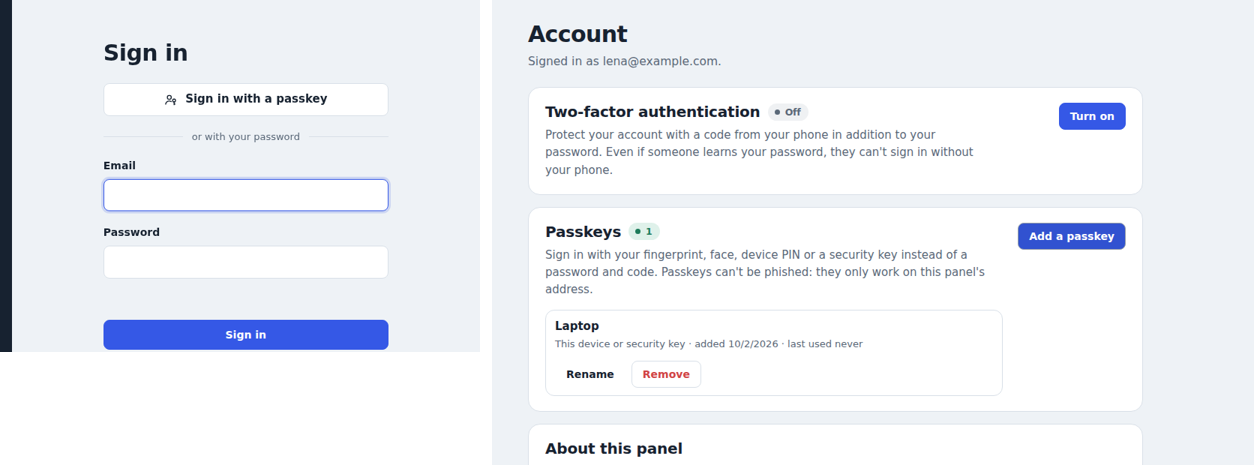
For users
- Sign in: Sign in with a passkey on the sign-in page. The browser asks for the fingerprint, face, PIN or security key.
- Add a passkey: Account (customers: the email at the bottom of the sidebar; admins: Your account) → Passkeys → Add a passkey, then name it ("Laptop", "YubiKey"). Add several for different devices.
- Rename or remove passkeys on the same card, which also shows when each was last used.
- Synced passkeys (iCloud Keychain, Google Password Manager, Windows Hello, 1Password, …) and hardware security keys both work.
A passkey sign-in counts as two-factor: the device is one factor, the fingerprint or PIN the other. Users signing in with a passkey skip the code step, and it satisfies "Require two-factor authentication".
Requirements
Browsers only allow passkeys on a domain name over https — or on localhost. They
don't work on a bare IP address such as http://192.168.1.20:3000; the panel then simply
doesn't offer them.
| Portal | Works when opened as |
|---|---|
| Customer portal | https://panel.example.com (set PANEL_PUBLIC_URL) |
| Admin interface | http://localhost:3001 through the SSH tunnel, or https://admin.example.com (set ADMIN_PUBLIC_URL) |
The passkey's domain is taken from PANEL_PUBLIC_URL / ADMIN_PUBLIC_URL when set,
otherwise from the address the browser used. A passkey belongs to its domain: one created
on panel.example.com doesn't work on another address. Customers' passkeys never open the
admin interface.
PASSKEYS_ENABLED=false switches passkeys off entirely.
For administrators
- The Customers list shows a Passkey tag for users who have at least one.
- Sign-in (button in the list) → Remove all passkeys: for a lost or stolen device. The user then signs in with password or single sign-on and can add new passkeys.
- Sign-ins with passkeys, and added or removed passkeys, appear in the Activity log.
How it's secured
- Verification by the
@simplewebauthn/serverlibrary: signature, origin, domain, challenge and signature counter. - User verification is always required (fingerprint/PIN), not just touching the key.
- Each challenge works once and expires after 5 minutes.
- Adding a passkey requires a sign-in within the last 15 minutes or the current password, so a stolen session can't quietly add the attacker's passkey.
- The panel stores only the public key. The user ID inside a passkey is a random value per account, not the email address.
- A signature counter going backwards (a cloned security key) is refused.
These cases — including a phishing origin, missing user verification, a forged signature, a
replayed counter and a reused challenge — are covered by the automated tests
(test/api/passkeys.test.mjs, and a browser test with Chromium's virtual authenticator).