Customer portal
What customers see and can do after signing in.
Overview and network map
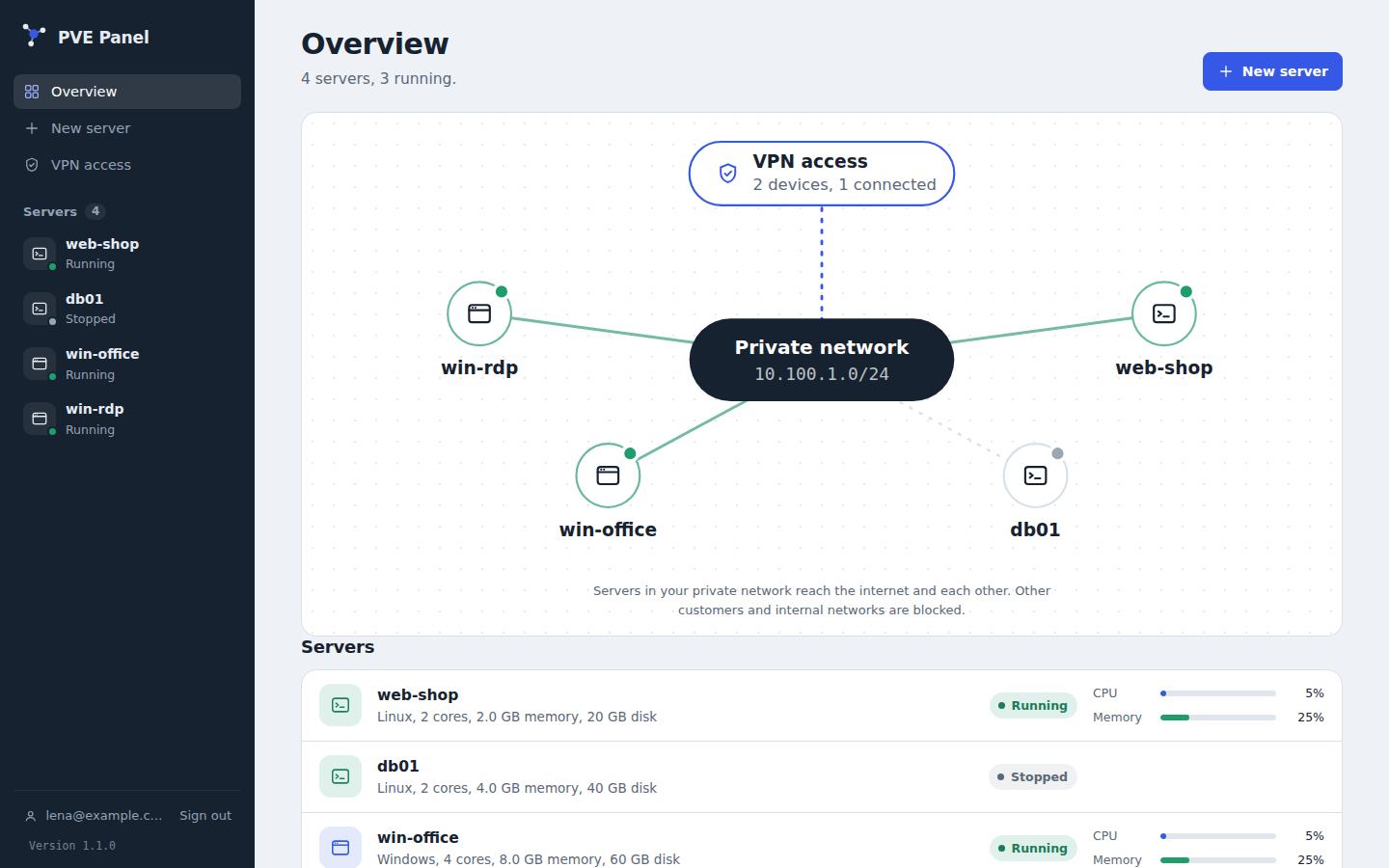
The overview shows the customer's private network as an interactive map: servers, their state, and VPN access. Below it, the server list with live CPU and memory use.
Server page
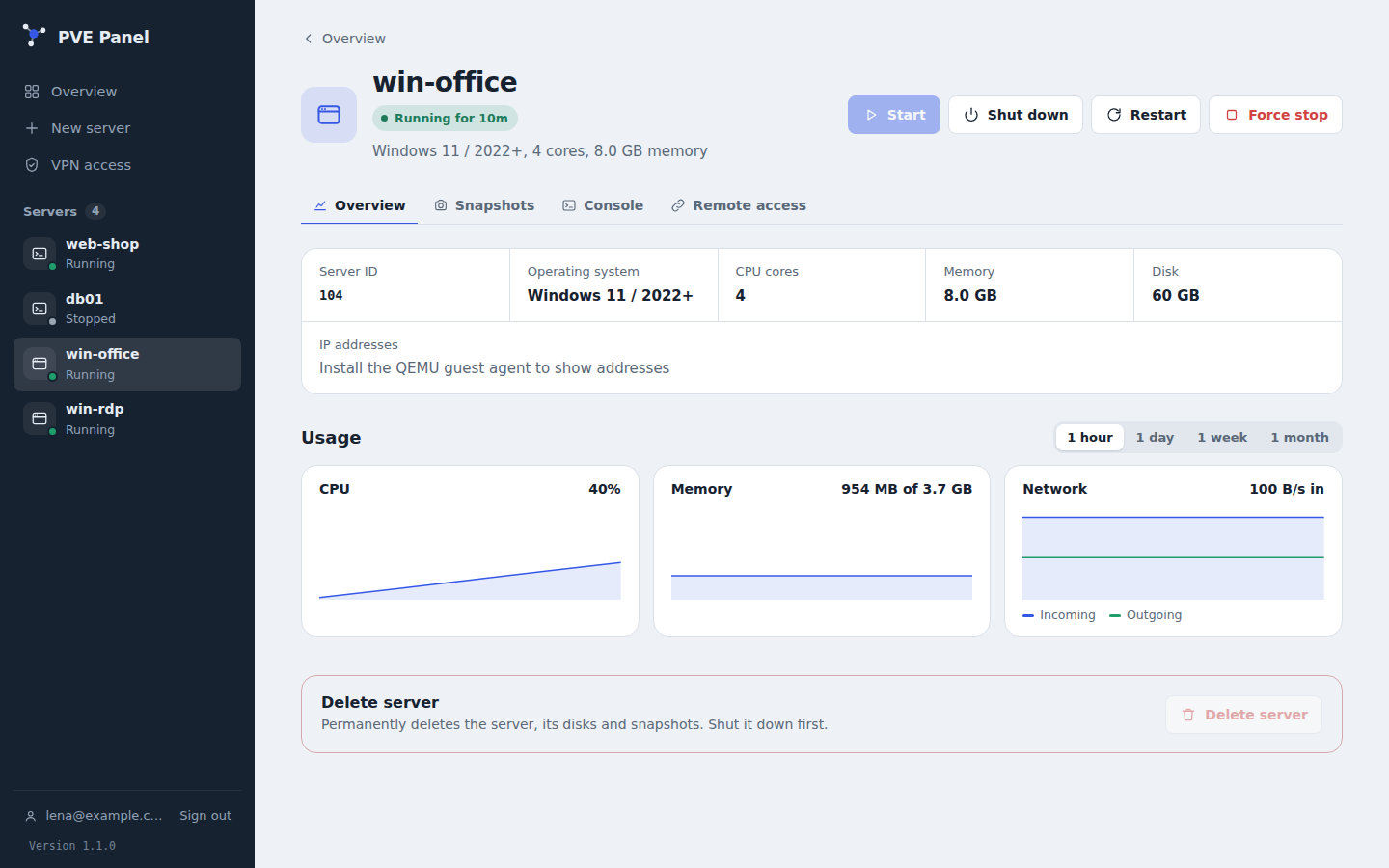
- Power: start, shut down, restart, force stop
- Overview: server ID, operating system (Windows / Linux recognised), CPU, memory, disk, IP addresses (with the QEMU guest agent) and usage graphs for an hour up to a month
- Snapshots: create (optionally including RAM), roll back, delete — up to the configured maximum
- Console: a browser console through the panel; sessions are single-use and short-lived
- Remote access: connect the server to the customer's own Tailscale account (Tailscale)
- Change size / Reinstall / Delete for servers the customer created (Resize, Reinstall)
Creating servers
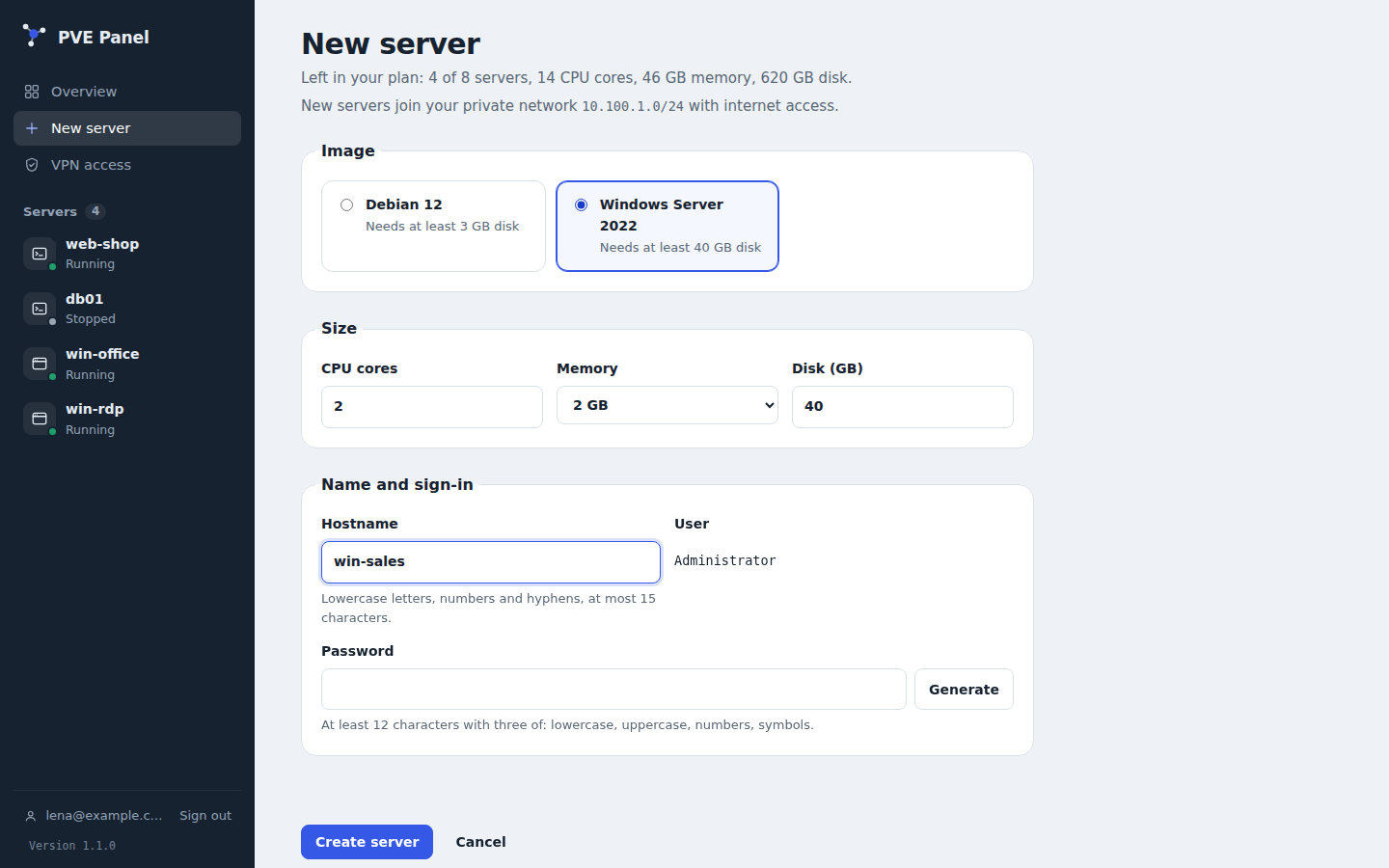
When you enable self-service for a customer, New server creates servers from the templates you offer, within the customer's plan (servers, CPU cores, memory, disk). Linux servers are set up with cloud-init, Windows servers through the QEMU guest agent; progress is shown live. See How server creation works.
VPN access
With the WireGuard gateway enabled, customers add devices (laptop, phone), download the configuration or scan a QR code, and reach their private network — and only that. See WireGuard VPN.
Account
Customers manage their two-factor authentication and see the panel version under Account (the email at the bottom of the sidebar).