Windows updates
Customers can install the latest Windows updates on their Windows servers with one button — no remote desktop session needed.
For customers
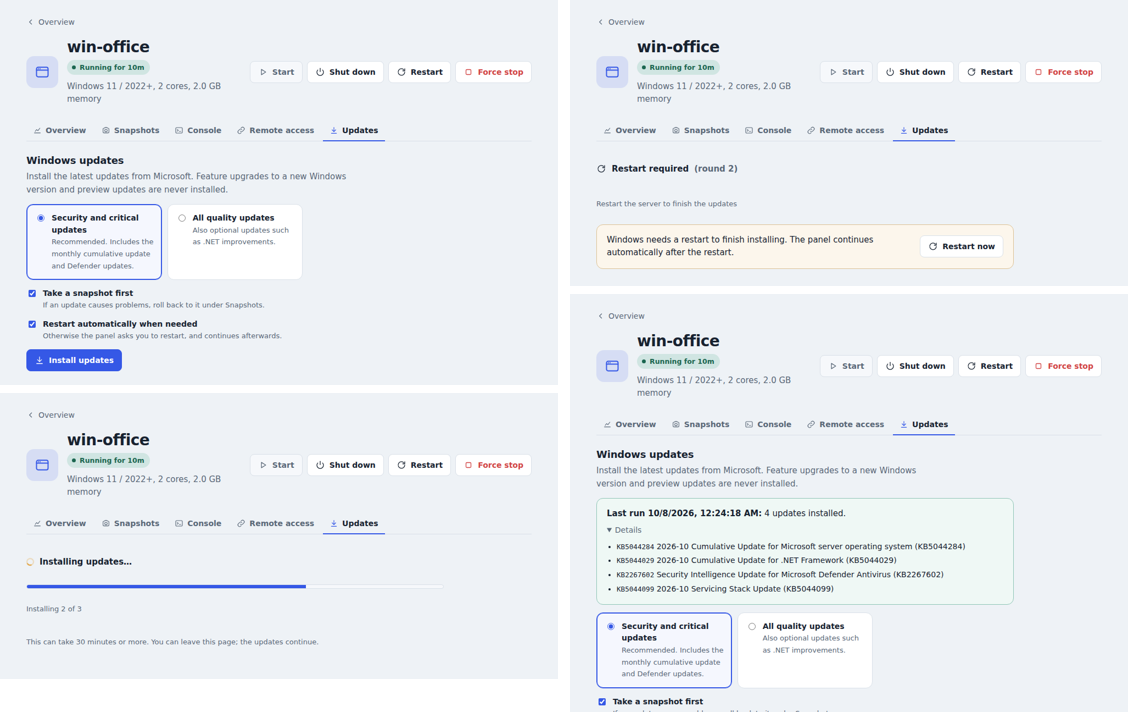
On a Windows server's page, the Updates tab offers:
| Option | Default | Meaning |
|---|---|---|
| Security and critical updates | ✓ | The monthly cumulative update, critical fixes and Defender updates |
| All quality updates | Also optional updates such as .NET improvements | |
| Take a snapshot first | ✓ | A snapshot before updating — roll back under Snapshots if something breaks |
| Restart automatically when needed | ✓ | Otherwise the panel shows Restart required with a Restart now button and continues after the restart |
The tab shows the progress (Searching… → Downloading 2 of 5 → Installing…) and afterwards the list of installed updates. Updates usually take 30 minutes or more on a new server; customers can leave the page meanwhile.
Never installed: feature upgrades to a new Windows version, and preview updates.
How it works
The panel uses the QEMU guest agent (like for the Windows setup and Tailscale):
- Checks: guest agent running, at least 10 GB free on
C:, the Windows Update service not disabled, no other run active. - Snapshot (if chosen) — counts toward the snapshot limit; if all snapshots are used, the customer is asked to delete one or start without.
- A PowerShell script is copied to
C:\ProgramData\PVEPanel(SYSTEM and Administrators only) and registered as the scheduled task PVEPanel-WindowsUpdate, running as SYSTEM. - The script uses Windows' own update API (
Microsoft.Update.Session): it searches, downloads and installs update by update and writes its progress to a status file. - If a restart is needed, it restarts (or waits for one) and continues automatically after the restart, until nothing is left (at most 5 rounds).
- The panel reads the status through the guest agent — also in the background every minute, so the result is recorded even when nobody watches — and removes the task when done.
Servers managed by WSUS or group policy use the update source configured there.
While updates are running, the server can't be reinstalled or resized.
For administrators
- Settings → Windows updates switches the feature on or off for all customers (on by default).
- Every run appears in the Activity log: started, finished (with the number of installed updates) or failed (with the reason).
- Common errors are shown in plain words, e.g. Windows Update can't be reached (check DNS or proxy settings) (0x8024402C) or Not enough disk space on drive C:.
The first update run on a new server is the longest, because the template is months old. Updating your Windows templates now and then (update, Sysprep, convert back to a template) makes new servers start almost up to date.
Good to know
- Test it on a test server first. The panel's side is covered by automated tests against a simulated Windows Update; real Windows Update behavior depends on Microsoft and on each server's configuration.
- Download speed and update sizes are outside the panel's control.
WINUPDATE_POLL_SECONDS(default 60) sets how often the panel checks running updates in the background.